BREAKING NEWS
Showing posts with label Apps. Show all posts

Tuesday, 25 July 2017

How to hide your top secret files inside the Calculator on your Android smartphone

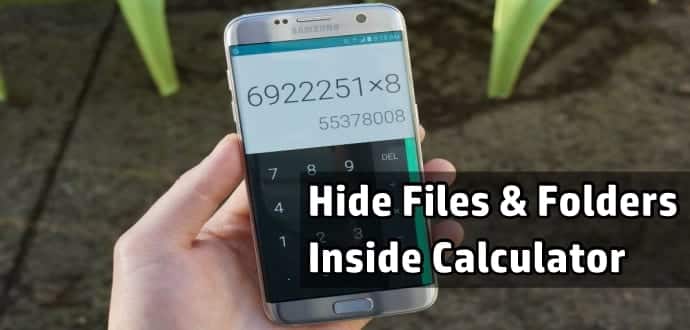
How To Hide Files & Folders Inside Calculator On Your Android Smartphone and Tablet

All of us have our little secret videos, images, and documents stored on our Android smartphones, which we abhor others even peeking at. The problem with our smartphones is that every Tom Dick and Harry asks for it to check out its features, camera, and specifications. And we can’t just refuse especially if the person who wants is our near and dear one.

Hiding your video/image and documents in a conspicuous folder will make your loved ones even more suspicious. In olden days, we used to create a folder named System and save such videos and photos in this folder. But now everybody knows this trick. While there are many other methods available on your Android smartphone to hide such important videos and images, today we will teach you to hide your files and folders behind your everyday App called Calculator.

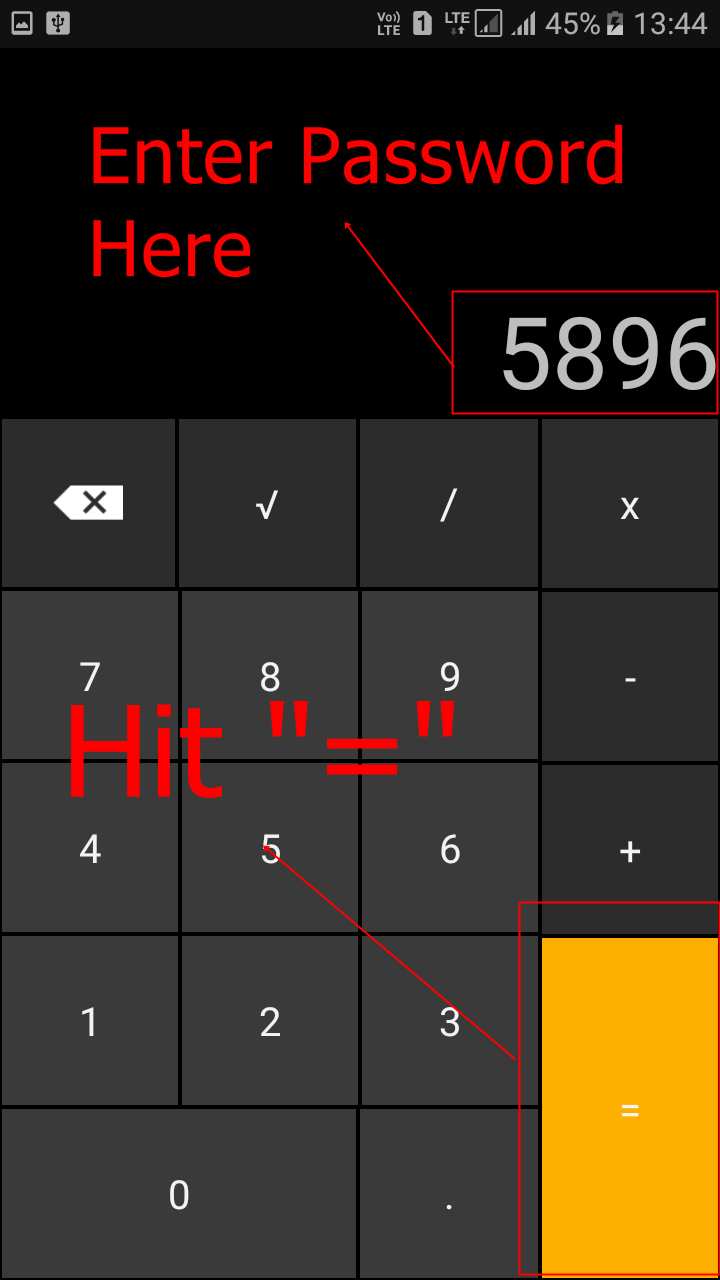
Yes, Calculator! Thanks to an App called “Smart Hide Calculator” which is a fully functional calculator app you can hide your important files and folders from prying eyes. Smart Hide Calculator is actually a vault where you can store pictures, videos, and documents with its front as a Calculator.  You need to setup a password and then press the “=” button then you will get to see the files inside the app.

How To Hide Your Private Files Inside Calculator App On Android Smartphone

Step 1. First of all, you need to download and install the Smart Hide Calculator App from Google Play on your Android smartphone/tablet.

 Smart Hide Calculator- screenshot thumbnail

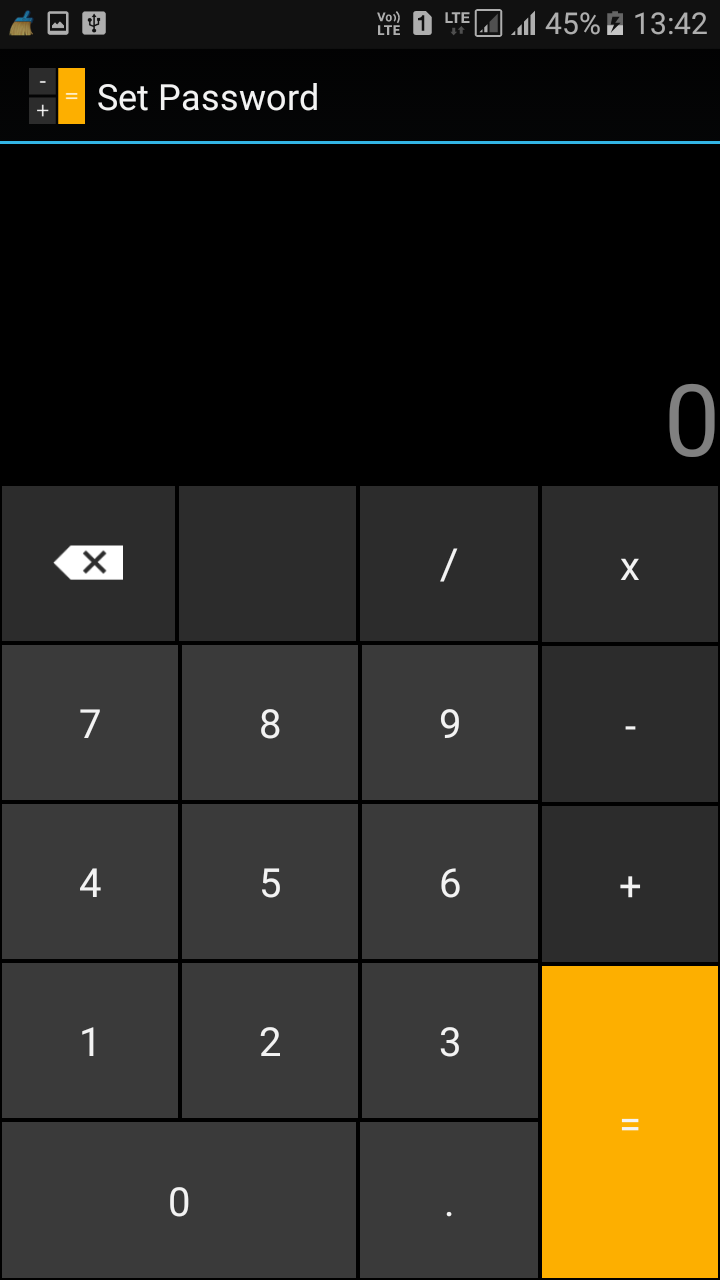
Step 2. Now open the App and it will prompt you to set a password. Set a fairly hard yet easy to remember password because this will let you unlock/lock your private hidden files.

Hide Files & Folders Inside Calculator On Android
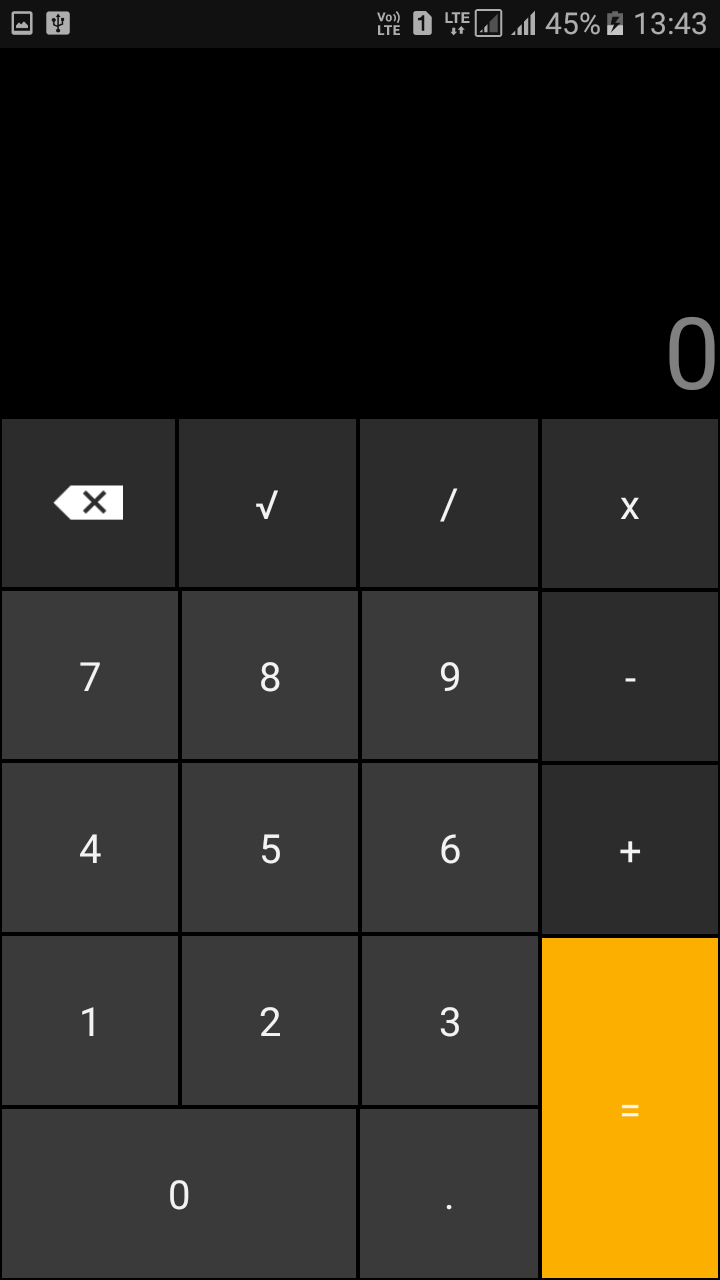
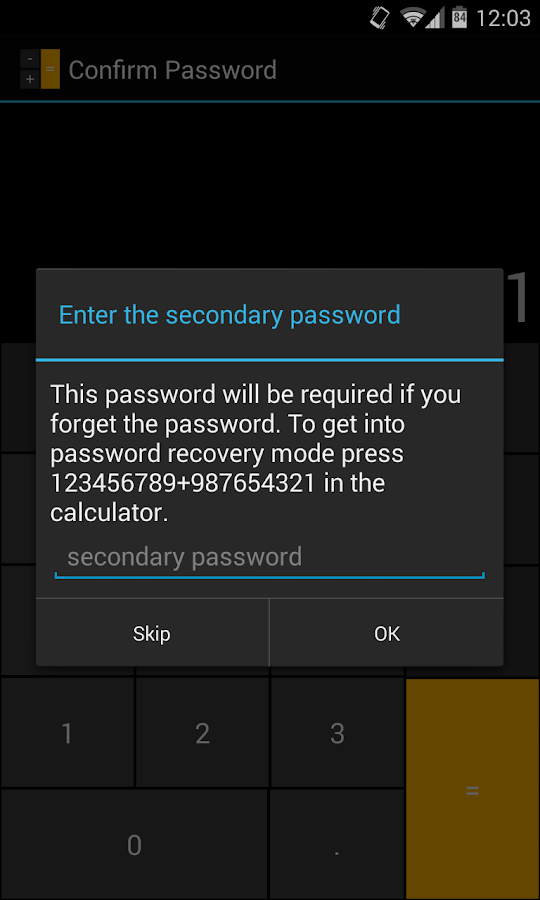
Step 3. After you confirmed the password, you and who every takes your Android smartphone will only see a fully functional Calculator App. 
Hide Files & Folders Inside Calculator On Android
Step 4. To start adding your private files, you just need to enter the password and tap on “=” button to access the vault.
Hide Files & Folders Inside Calculator On Android
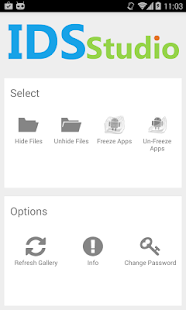
Step 5. Once you entered the password and tapped on ‘=’ button, The App will give you options likes “Hide Files”, “Unhide Files,” Change Password etc.
Hide Files & Folders Inside Calculator On Android
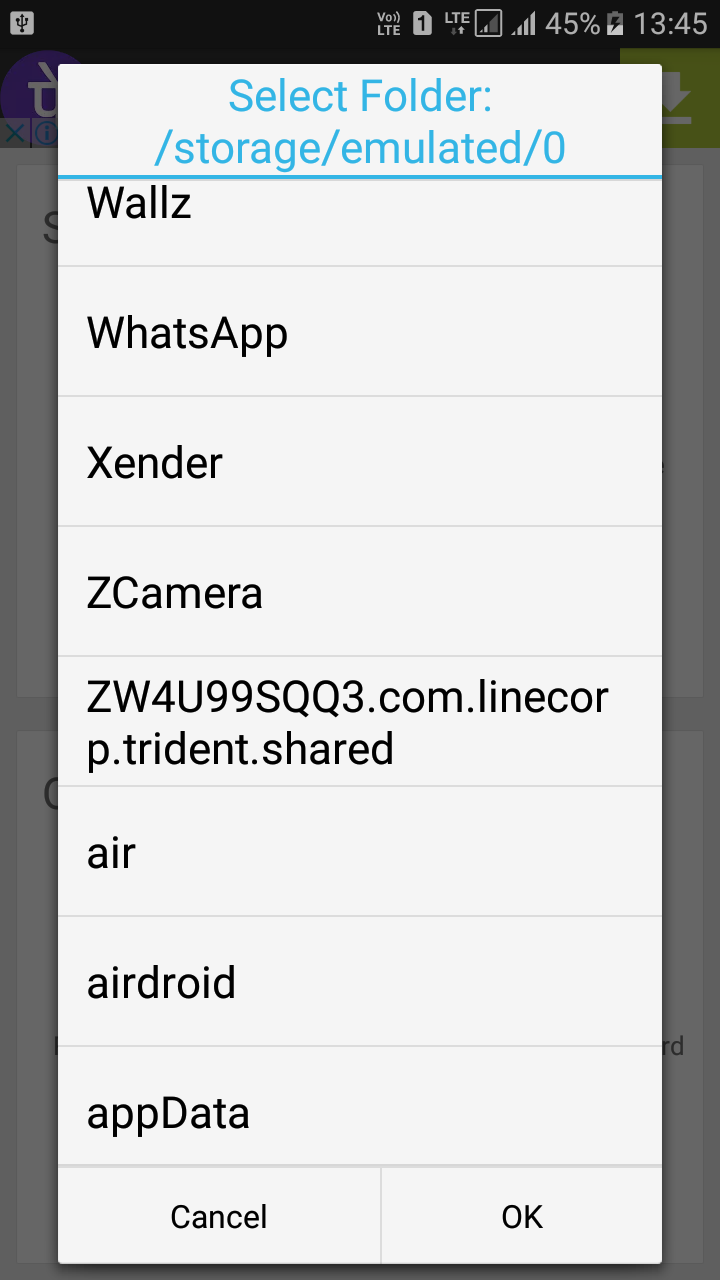
Click on the Hide Files icon and select the drive and the file folder or individual videos/music/photographs or documents you want to hide. 
Hide Files & Folders Inside Calculator On Android

Press Ok and all your important top secret files and folders are hidden behind the most trusted app in the world, your Calculator.  If you want to unhide the files then simply go to the vault and select the option “Unhide Files” and from there you can unhide files.

In case you forget your password, don’t worry, the password can be reset using a master key by pressing 123456789+987654321

 Smart Hide Calculator- screenshot

The Smart Hide Calculator App is perhaps the best way to hide your important files and folders on your Android smartphone.

How To Install Kali Linux On Android Smartphone

Install Kali Linux on your Android device and develop a portable penetration testing environment

Kali Linux, a secure distribution of Linux, is one of the most widely used OS among ethical hackers  (and unethical hackers). The reason is that Kali Linux has almost every tool required for pentesting pre-installed. And a great back end support fromOffensive Security make it a great platform for beginners as well as professionals. Kali Linux is a successor of BackTrack OS which was also developed by Offensive Security.

The developers at Offensive Security have been working extensively for developing a dedicated operating system for cyber-security researchers. Along with ARM devices, Kali Linux is available for Android too.

The installation process is very simple and straightforward. If you have a rooted Android phone having at least 5GB of free storage and a fast internet connection (to download repository files), then everything else is just a matter of few taps on your smartphone.

First of all installLinux Deploy app from Play Store.

Now make sure that your phone is in the required state for installation. That is, make sure that your phone is rooted, having 5GB of free space, an internet connection with decent speed (and you are patient enough to wait for Kali to bootstrap from the network).

Root privilege is required because Kali will install itself in chroot mode. Which means that allowed access will be restricted to specified directory (acting as root directory) and their children.

Step 2 is running the app, and selecting Kali Linux in the distribution tab. Optionally, you can choose your architecture, verify that the Kali mirror is correct, set your installation type and location on your Android device, etc. Generally speaking, the defaults provided by Linux Deploy are good to begin with.

Once all the settings are at place, hit the “install” button and app will start a Kali Linux bootstrap directly from repositories of Offensive Security. Depending on your Internet connection speed, this process could take a while. You’ll be downloading a base install of Kali Linux (with no tools) at minimum.

When the installation is complete, you can have Linux Deploy automatically mount and load up your Kali Linux chroot image. This also includes the starting of services such as SSH and VNC for easier remote access. All of this is automatically done by hitting the “start” button. You should see Linux Deploy setting up your image with output similar to the following:
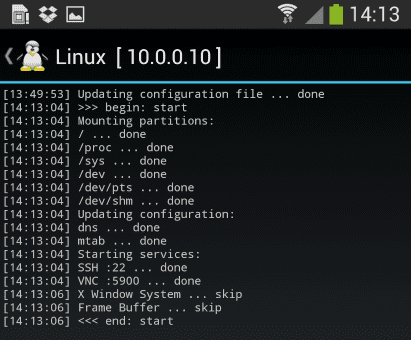
Kali Linux

At this stage, Linux Deploy has started a VNC and SSH server inside your chrooted Kali image. You can connect to the Kali session remotely using the IP address assigned to your Android device (in my case, 10.0.0.10).

Logging In:

You can now access your Kali Linux instance with either VNC or Secure Shell(SSH). The required credentials are-
For VNC password is “changeme”
For SSH username is “android” and password is again “changeme”

This is what it all looks like on your device:

Linux localhost 3.4.5-447845 #1 SMP PREEMPT Fri Apr 12 17:22:34 KST 2013 armv7l
Kali GNU/Linux 1.0 [running on Android via Linux Deploy] android@localhost:~$ sudo su
root@localhost:/home/android# df
Filesystem 1K-blocks Used Available Use% Mounted on
/dev/loop3 4180944 667268 3304012 17% /
tmpfs 952708 80 952628 1% /dev
tmpfs 952708 0 952708 0% /dev/shm
root@localhost:/home/android#
root@localhost:/home/android# apt-get update
Hit http://http.kali.org kali Release.gpg
Hit http://http.kali.org kali Release
Hit http://http.kali.org kali/main Sources
Hit http://http.kali.org kali/contrib Sources
Hit http://http.kali.org kali/non-free Sources
Hit http://http.kali.org kali/main armel Packages
Hit http://http.kali.org kali/contrib armel Packages
Hit http://http.kali.org kali/non-free armel Packages
Ign http://http.kali.org kali/contrib Translation-en_US
Ign http://http.kali.org kali/contrib Translation-en
Ign http://http.kali.org kali/main Translation-en_US
Ign http://http.kali.org kali/main Translation-en
Ign http://http.kali.org kali/non-free Translation-en_US
Ign http://http.kali.org kali/non-free Translation-en
Reading package lists… Done
root@localhost:/home/android#

Memory Considerations:
If left unchanged, Linux Deploy will automatically set an image size of around 4 GB, for a “naked” installation of Kali. If you would like to install additional Kali tools down the road, you might want to consider using a larger image size, which is configurable via the settings in Linux Deploy.

Quick Tip: Prefer SSH over VNC while logging into your OS. This will save you a lot of time.

Post your further queries in the comment box to get them resolved.

Source:www.techworm.net

Thursday, 20 July 2017

10 music players for Android

10 music players for Android

Have you ever had the feeling that the stock music player on your Android smartphone is missing something? Have you ever wondered if there was anything good to substitute it with? Well, guess what – there are alternative music players in the Play Store and they come by the truckloads. Some are better than others, however. In fact, the 10 music player apps for Android we've selected below are among the best you can find.
Go check them out and tell us which one you like the most! As always, don't hesitate to let us know in case we've missed a great Android music player that should have been on the list.

10 music players for Android

1. Double Twist

Double Twist is by far among the most popular Android music players. What makes it special is that it can sync with the iTunes library on your home computer. With the AirSync premium add-on ($4.99) that can be done over your wireless network. Additional premium features are available as in-app purchases. Widgets are also available as a separate download.


2. Winamp

Alternatively, you can try Winamp, which also supports wireless media syncing with a computer, but offers the feature at no charge. It also provides access to radio stations that you can stream from the SHOUTcast database. The Pro version, priced at $4.99, also gets you a 10-band equalizer, crossfade, gapless playback, and removes the ads. 

Winamp

3. Player Pro


Player Pro is an advanced music and video player with lots of handy features, such as automatic album art downloading, group editing of ID3 tags, generating "smart" playlists, and more. Many different skins are available, and a free DSP pack adds sound enhancements like an equalizer, stereo widening, reverb effects, and crossfade.

PRICE: $4.99

Player Pro

4. Poweramp


Poweramp is another great music player with a number of advanced features. It supports gapless playback, crossfade, and a wide range of audio formats. You get several kinds of sound enhancements as well. Poweramp is a premium app, but you get a 2-week free trial.

PRICE: $2.49 (2-week free trial)

Poweramp

5. Rocket Player


Rocket Player seems a bit basic at first, but it is a full-featured music player that can easily replace your stock application. With a $3.99 premium plug-in you can sync your iTunes library wirelessly with the player's database. It is also cool to see that you can pick a song you're listening to and set is as a ringtone.
Rocket Player

6. Android Music Player


But if for some reason you prefer the old-school stock Android application, without all the bells and whistles, just get the Android Music Player, free of charge.
Android Music Player

7. Astro Player Nova


With Astro Player Nova you can enjoy music, video, audiobooks and podcasts. You get an equalizer, gapless playback support, and a number of skins to choose from. There is an automatic album art feature built-in as well. The full version of the app is priced at $4.99, but you can get a 30-day free trial to test it out. 
Astro Player Nova

8. NRG Player


And here's one more feature-rich music player - NRG Player. The full version is priced at $2.99, but a 10-day free trial is also available. 
NRG Player

9. Uber Music


What's interesting about Uber Music is its interface. The looks and feel of this music player for Android have been inspired by Microsoft's Modern UI found on Windows Phone 8. Additional skins are available for download from the Play store.

PRICE: $3.49
Uber Music

10. Clean Music Player


Nothing fancy to see here. Just a stripped down music player with no bells and whistles. Perfect for minimalists!
Clean Music Player

Google Drive for Android gets big update, minor changes to Play Music and Wallet apps

Google has updated a trio of its apps for Android today, although two of them - Google Wallet and Play Music - received just minor updates with nothing much to tell, but Google Drive got a big update with quite a few new and interesting features. The update for Google Play Music is just listed as "minor fixes", and Google Wallet didn't even get an update to the changelog, so we're not sure what's new there (we'll update as we find out). 


The real story is Google Drive for Android, which got quite a few new features. None of the features are what we'd call a "killer feature", but they do add a number of nice options throughout the app. The changelog list shows:

1. Create folder, upload to folder and move to folder
2. Filter folder contents by file type
3. Option to auto-sync pinned content while on 3G
4. Richer Google Presentations viewing experience
5. Basic table support in Documents Editor
6. Create, reply and resolve comments in Documents Editor
7. View and change fonts in Documents Editor
8. Pinch to zoom in Documents Editor
9. Print files using Google Cloud Print
10. Option to resume interrupted uploads
11. Updates to gesture detection

Overall, it should allow users to make richer documents on mobile devices, and the option to print via Google Cloud Print is especially nice given that Cloud Print can be used to print to any Kinko's, so you can really get work done on the go.

All of the apps are available for free in the Google Play Store, so head there for Google DriveGoogle Wallet, and Google Play Music.

Google Play Music update adds option to listen to songs directly in search


The Android version of Google Play Music is getting new tweaks and improvements from time to time, but many of them don't come as updates via Google Play Store. It means that even if you have the newest version of the app, some features might not be available for you yet since they are rolled out from the server side.
One such feature is the option to listen to songs or entire albums directly from the search tab. There's a new play icon for the first three results that you get after doing a search in the Google Play Music for Android.

Only the first three search results are playable, but you can tap on the rest to view the listing in a separate window. Apparently, the new feature is available in the latest 7.9 and 7.10 versions of Google Play Music for Android, but it might not be available to everyone yet.

Keep in mind that the new option has been implemented in addition to the standard Search page of the Android app, so you can now use both depending on the situation.

 
Copyright © 2014 HK TECH - How to 's ; Tips , Tricks And News. Designed by OddThemes